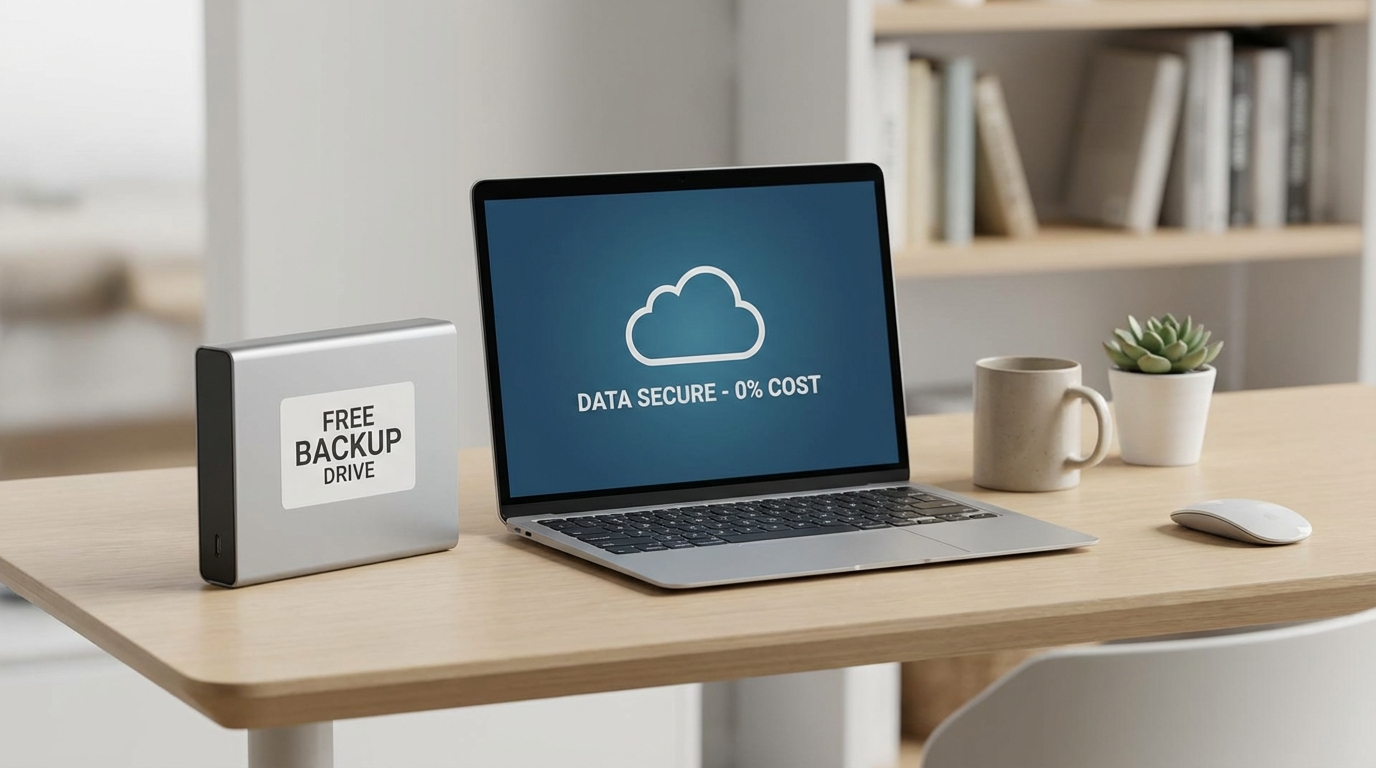
Okay, let’s talk about backing up your stuff. Losing your computer data is a nightmare, and I’m here to tell you how to avoid it without spending a dime.
The “3-2-1” Rule and Why You Need It
Look, before we get into specific tools, let’s talk strategy. The “3-2-1” backup rule is something I’ve lived by for years, and it’s saved my bacon more than once. It means keeping three copies of your data, on two different types of storage, with one copy stored offsite. Why? Because hard drives fail. Flash drives get lost. Houses burn down (seriously, offsite is important!).
Here’s the thing: I know it sounds like overkill, but trust me, the small amount of effort involved in having proper backups is trivial compared to the stress and potential expense of data recovery if something goes wrong. Data recovery services are EXPENSIVE. We’re talking hundreds of dollars for a *chance* to get your files back.

My Top Free Backup Methods for 2024
Okay, so how do we actually *back up computer data for free*? Here are my favorite methods, ranked in terms of my personal preference and the “peace of mind” factor.
1. Cloud Backup with Google Drive (or OneDrive)
Honestly, for most people, cloud storage is the easiest and most convenient way to back up your important files. Google Drive gives you 15GB of free storage, and OneDrive is similar. That’s usually enough for your important documents, photos, and maybe even some smaller video projects. I personally use Google Drive for documents, photos, and random files I need to access across devices.
Pros:
* Accessibility: Access your files from anywhere with an internet connection.
* Automatic Sync: Changes are automatically synced across devices, meaning if I change something on my desktop, it’s instantly updated in the cloud.
* Ease of Use: Drag-and-drop interface makes it simple to upload files.
* Version History: Google Drive keeps a version history of your files, so you can revert to an older version if needed. This has saved me from accidental edits a few times.
* Cost (Free): The price is right (free!), up to the storage limit.
Cons:
* Limited Storage: 15GB goes quickly, especially if you’re backing up large photo or video libraries. (You can upgrade, but then it’s not free anymore!)
* Privacy Concerns: Your data is stored on Google’s servers, so you need to be comfortable with their privacy policies. (I personally am, but everyone is different.)
* Internet Dependency: You need an internet connection to access and sync your files. Obvious, but still something to consider. Restoring a large backup can take a while.
Now, Google Drive isn’t a complete system image backup. It’s really designed for files, folders, and working documents.
2. External Hard Drive + Manual Backups (The Reliable Workhorse)
This is the classic “old school” method. Get an external hard drive (I recommend a 2TB drive like the Seagate Portable, usually around $60 on Amazon), and manually copy your important files to it on a regular basis. It’s less convenient than cloud backup, but it’s completely free after the initial cost of the drive, and you have full control over your data.
Pros:
* Full Control: You own the hardware, and you control where your data is stored.
* Fast Restore: Restoring from an external drive is usually much faster than restoring from the cloud.
* Offline Access: You don’t need an internet connection to access your backups.
* One-Time Cost: After purchasing the drive, there are no ongoing subscription fees.
* Larger Backups: This method is ideal for large files, or entire drive image backups.
Cons:
* Manual Process: You have to remember to manually copy your files, which can be easy to forget.
* Physical Security: The drive is vulnerable to theft, damage, or natural disasters. (This is where the “offsite” part of the 3-2-1 rule comes in. Store a copy at a friend’s house, or in a safe deposit box.)
* Drive Failure: Hard drives can fail, so it’s important to have a backup of your backup. (Again, 3-2-1!)
I use the external hard drive method for full system image backups (more on that below) every few months. It feels good to know I have a complete copy of my entire drive.
3. System Image Backups with Macrium Reflect Free
For complete disaster recovery, you need a system image backup. This is an exact copy of your entire hard drive, including the operating system, applications, and all your files. If your computer crashes or gets infected with a virus, you can restore the system image and get back up and running in no time.
I’ve tested a bunch of free backup software, and Macrium Reflect Free is my top pick. It’s powerful, reliable, and surprisingly easy to use (once you get the hang of it).
Pros:
* Complete Recovery: Restore your entire system to a working state, even if your operating system is corrupted.
* Scheduled Backups: You can schedule backups to run automatically, so you don’t have to remember to do it manually.
* Incremental Backups: Only backs up the changes since the last backup, which saves time and storage space.
* Free! The basic version is free for home use.
Cons:
* Steep Learning Curve: It can be a bit intimidating for beginners. There are a lot of options and settings.
* Requires Technical Knowledge: You need to know how to create a bootable rescue media (usually a USB drive) in case your computer won’t start.
* Can be Slow: The initial full image backup can take a long time, especially if you have a large hard drive.
To be clear, Macrium Reflect Free isn’t something you’re going to use *daily*. But for creating a backup every few months that can save you from total disaster? It’s invaluable. Make sure to keep a USB drive with the rescue media safe!
4. USB Flash Drives (For Small, Important Files)
I wouldn’t recommend relying solely on USB flash drives for backing up your entire computer, but they’re great for small, important files that you need to access on the go. A 64GB SanDisk Cruzer Glide can be had for around $8 at Walmart, and it’s perfect for storing things like tax returns, scanned documents, and password lists.
Pros:
* Portability: Small and easy to carry around.
* Affordable: Relatively inexpensive, especially for smaller capacities.
* Offline Access: No internet connection required.
Cons:
* Easy to Lose: They’re so small, they’re easy to misplace.
* Limited Storage: The storage capacity is limited compared to external hard drives.
* Durability: Flash drives can be easily damaged by water, heat, or physical impact.
* Slower Transfer Speeds: Transfer speeds can be slower compared to external hard drives.
I personally use a USB drive as part of my larger backup system. It isn’t the only part, but it is a valuable tool to have.
Comparison Table: Free Backup Methods
| Method | Cost | Ease of Use | Storage Capacity | Pros | Cons |
|---|---|---|---|---|---|
| Google Drive (or OneDrive) | Free (up to 15GB) | Very Easy | 15GB (free) | Accessible from anywhere, automatic sync, version history. | Limited storage, privacy concerns, internet dependency. |
| External Hard Drive | One-time cost (~$60 for 2TB) | Moderate | Varies (up to several TB) | Full control, fast restore, offline access. | Manual process, physical security, drive failure. |
| Macrium Reflect Free | Free | Moderate to Difficult | Varies (depends on your drive size) | Complete system recovery, scheduled backups, incremental backups. | Steep learning curve, requires technical knowledge, can be slow. |
| USB Flash Drive | Low (~$8 for 64GB) | Easy | Limited (up to 256GB) | Portability, affordable, offline access. | Easy to lose, limited storage, durability issues. |
Setting Up Automatic Backups with Windows File History
You can also use Windows’ built-in File History feature with an external hard drive. It automatically backs up your Documents, Pictures, Music, Videos, Desktop folders, and OneDrive files. While it’s not a full system image backup, it’s a convenient way to protect your most important personal files.
To set it up, go to Settings > Update & Security > Backup > Add a drive. Select your external hard drive, and File History will start backing up your files automatically. You can customize the backup frequency and which folders to include. I think it’s generally a good idea to at least turn this on if you are using an external drive.
Final Thoughts: Just Do *Something*
Ultimately, the best way to **back up computer data for free** is the method you’ll actually *use*. Don’t get paralyzed by analysis. Pick a method (or a combination of methods) that works for you, and stick with it. Even a basic backup strategy is better than nothing. So, go back up your stuff! You’ll thank me later.