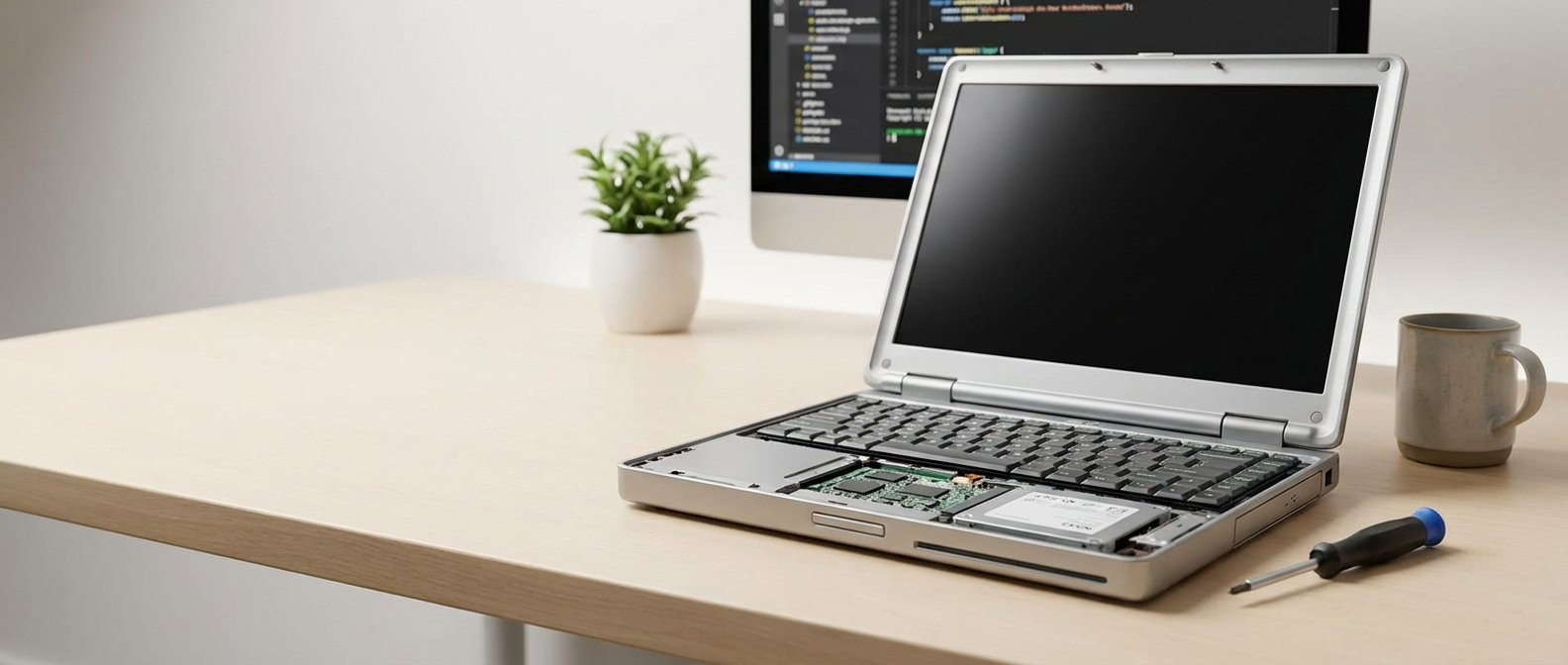
Is Your Old Laptop Feeling Like a Tortoise? Don’t Despair!
We’ve all been there. That trusty laptop you’ve had for years, the one that used to blaze through tasks, is now crawling at a snail’s pace. Opening a simple web browser feels like waiting for dial-up to connect all over again. Before you resign yourself to shelling out hundreds (or even thousands!) for a brand new machine, hold on! Budget TechBot is here to help. You might be surprised at how much you can speed up your old laptop without spending a fortune.
This comprehensive guide will walk you through a series of proven techniques, from simple software tweaks to more involved hardware upgrades. We’ll focus on affordable, practical solutions that any user can implement, regardless of their technical expertise. So, let’s dive in and breathe new life into that aging laptop!

Software Solutions: Tweaks and Cleans for a Faster Machine
Often, the biggest performance bottlenecks in older laptops stem from software bloat and inefficient operating system settings. Before even thinking about opening up your machine, give these software-based fixes a try.
1. Uninstall Unnecessary Programs
This is often the most impactful first step. Think about it: how many programs do you actually use regularly? Many pre-installed programs (bloatware) and apps you downloaded years ago might be hogging valuable system resources. Go through your installed programs list (Control Panel -> Programs -> Programs and Features on Windows, or Applications folder in Finder on macOS) and uninstall anything you don’t need. Be careful not to remove essential system programs, though! If you’re unsure, do a quick web search before uninstalling.
Pro Tip: Pay attention to programs that start automatically when your computer boots up. These can significantly slow down startup times. Disable unnecessary startup programs in Task Manager (Windows) or System Preferences -> Users & Groups -> Login Items (macOS).
2. Clean Up Temporary Files and Caches
Over time, your laptop accumulates a ton of temporary files, browser caches, and other digital clutter. These files can fill up your hard drive and slow down performance. Regularly cleaning these up can make a noticeable difference.
Windows: Use the built-in Disk Cleanup tool (search for “Disk Cleanup” in the Start menu). Select the drive you want to clean (usually C:) and check the boxes for “Temporary files,” “Recycle Bin,” “Thumbnails,” and other categories you want to clear.
macOS: macOS has a built-in “Optimize Storage” feature (Apple Menu -> About This Mac -> Storage -> Manage…). This helps identify and remove large files and unused applications. You can also manually clear caches by navigating to `~/Library/Caches` in Finder and deleting the contents (be careful not to delete important files!).
CCleaner: A popular third-party tool, CCleaner, is available for both Windows and macOS. It provides a more comprehensive cleaning solution and can also help manage startup programs and registry issues (Windows only).
3. Run a Malware Scan
Malware infections can severely impact your laptop’s performance. Ensure you have a reputable antivirus program installed and run a full system scan regularly. Many free antivirus options are available, such as Windows Defender (built-in to Windows 10 and 11), Avast Free Antivirus, and AVG AntiVirus Free. Keep your antivirus software updated to protect against the latest threats.
4. Defragment Your Hard Drive (Windows Only)
This tip applies primarily to laptops with traditional mechanical hard drives (HDDs). Over time, files become fragmented, meaning they are stored in non-contiguous blocks on the drive. Defragmentation rearranges these files to improve access times. Solid State Drives (SSDs) don’t require defragmentation and can actually be damaged by it, so only defrag if you have an HDD.
Windows: Use the built-in Disk Defragmenter tool (search for “Defragment and Optimize Drives” in the Start menu). Select the drive you want to defragment and click “Optimize.”
5. Update Your Operating System and Drivers
Keeping your operating system and drivers up to date is crucial for performance and security. Updates often include bug fixes, performance improvements, and compatibility updates that can significantly speed up your old laptop. Make sure to install all available updates for your operating system (Windows Update or macOS Software Update) and check for driver updates for your graphics card, network adapter, and other hardware components. You can often find driver updates on the manufacturer’s website.
6. Adjust Visual Effects (Windows Only)
Windows includes a variety of visual effects, such as animations and transparency, that can consume system resources. Disabling some of these effects can improve performance, especially on older laptops with limited processing power.
Windows: Search for “Adjust the appearance and performance of Windows” in the Start menu. In the “Visual Effects” tab, select “Adjust for best performance” to disable all visual effects, or customize the settings to your liking. Consider disabling features like “Animate windows when minimizing and maximizing” and “Fade or slide menus into view.”
7. Consider a Lightweight Operating System
If your old laptop is struggling to run the latest version of Windows or macOS, you might consider switching to a lightweight Linux distribution. Linux distributions like Linux Mint Xfce, Lubuntu, or ChromeOS Flex are designed to run efficiently on older hardware and can significantly improve performance. This option requires a bit more technical knowledge, but it can be a very effective way to breathe new life into an aging machine. Keep in mind that some programs that you use regularly might not have a Linux version and that compatibility might vary.
Hardware Upgrades: The Keys to a Significant Performance Boost
If software tweaks aren’t enough, upgrading your laptop’s hardware can provide a more substantial performance boost. While some upgrades may require a bit more technical skill, they are often surprisingly affordable and easy to implement.
1. Upgrade to an SSD (Solid State Drive)
This is arguably the single best upgrade you can make to speed up your old laptop. Replacing a traditional HDD with an SSD will dramatically improve boot times, application loading speeds, and overall responsiveness. SSDs are much faster and more durable than HDDs and will make your laptop feel significantly snappier. The price of SSDs has come down considerably in recent years, making them a very cost-effective upgrade.
Comparison: HDD vs. SSD
- HDD (Hard Disk Drive): Uses spinning platters and a read/write head to store data. Slower, more prone to mechanical failure, and consumes more power.
- SSD (Solid State Drive): Uses flash memory to store data. Much faster, more durable, and consumes less power.
Installation: Replacing your laptop’s HDD with an SSD is usually a straightforward process. You’ll need to purchase an SSD that is compatible with your laptop (typically a 2.5-inch SATA SSD). You can find numerous online tutorials that guide you through the installation process. You’ll also need to clone your existing operating system and data to the new SSD or perform a clean installation of your operating system.
Recommendation: Crucial MX500, Samsung 870 EVO, and Western Digital Blue are all excellent and affordable SSD options.
2. Increase RAM (Random Access Memory)
RAM is your laptop’s short-term memory, used for storing data that the CPU is actively working on. If your laptop has limited RAM, it can slow down performance, especially when running multiple applications or working with large files. Upgrading your RAM can significantly improve multitasking and overall responsiveness.
How Much RAM Do You Need?
- 4GB: Bare minimum for basic tasks like web browsing and email. Can struggle with multiple applications or large files.
- 8GB: Recommended for most users. Provides a good balance of performance and affordability. Suitable for multitasking, web browsing, and light gaming.
- 16GB: Ideal for power users, gamers, and those who work with large files or demanding applications.
Installation: Upgrading RAM is usually a simple process. You’ll need to purchase RAM that is compatible with your laptop (check your laptop’s manual or the manufacturer’s website for compatibility information). Open your laptop’s access panel, locate the RAM slots, and insert the new RAM modules. Again, you can find numerous online tutorials that guide you through the installation process.
Recommendation: Crucial and Corsair are reputable brands for RAM modules.
3. Clean the Cooling System
Over time, dust and debris can accumulate in your laptop’s cooling system, causing it to overheat. Overheating can lead to reduced performance and even hardware damage. Regularly cleaning the cooling system can help maintain optimal performance.
How to Clean the Cooling System:
- Compressed Air: Use compressed air to blow out dust and debris from the vents and fan.
- Vacuum Cleaner: Use a vacuum cleaner with a brush attachment to remove dust and debris from the vents. Be careful not to damage any internal components.
- Professional Cleaning: If you’re not comfortable cleaning the cooling system yourself, you can take your laptop to a professional repair shop.
4. Replace the Battery
While replacing the battery won’t directly speed up old laptop performance in most cases, a failing battery can cause performance throttling to conserve power. If your battery is constantly running out quickly or is significantly degraded, replacing it can improve your laptop’s usability and prevent unexpected shutdowns. Many older laptops have easily replaceable batteries, making this a relatively simple upgrade.
Preventative Maintenance: Keeping Your Laptop Running Smoothly
Once you’ve implemented these tips to speed up your old laptop, it’s important to practice preventative maintenance to keep it running smoothly. Regularly perform the following tasks:
- Run Disk Cleanup and Malware Scans Regularly: Schedule these tasks to run automatically on a regular basis.
- Keep Your Operating System and Drivers Updated: Enable automatic updates to ensure you always have the latest security patches and performance improvements.
- Backup Your Data: Regularly back up your important files to an external hard drive or cloud storage service.
- Keep Your Laptop Clean and Dust-Free: Clean the exterior of your laptop regularly and clean the cooling system periodically.
- Avoid Overheating: Don’t block the vents and avoid using your laptop on soft surfaces that can trap heat.
Conclusion: A Faster Laptop Without Breaking the Bank
Don’t give up on your old laptop just yet! By implementing these software tweaks and hardware upgrades, you can significantly improve its performance and extend its lifespan. Start with the software solutions, and if you still need a boost, consider upgrading to an SSD and adding more RAM. With a little effort and a small investment, you can transform your sluggish laptop into a responsive and efficient machine. Remember to practice preventative maintenance to keep your laptop running smoothly for years to come. Happy computing!